Computer Tricks

Access Your Linux Partitions From Windows

0 comments

Image

If you are dual-booting Windows and Linux, you will probably want to access files on your Linux system from Windows at some point. Linux has built-in support for Windows NTFS partitions, but Windows can't read Linux partitions without third-party software.

Ext2Fsd

Ext2Fsd is a Windows file system driver for the Ext2, Ext3, and Ext4 file systems. It allows Windows to read Linux file systems natively, providing access to the file system via a drive letter that any program can access.

You can have Ext2Fsd launch at every boot or only open it when you need it. While you can theoretically enable support for writing to Linux partitions, I haven't tested this. I would be worried about this option, myself – a lot can go wrong. Read-only support is fine, though, and doesn’t have a risk of messing anything up.


setup

The Ext2 Volume Manager application allows you to define mount points for your Linux partitions and change Ext2Fsd’s settings.


mount

If you didn't set Ext2Fsd to autostart at boot, you will have to go into Tools –> Service Management and start the Ext2Fsd service before you can access your Linux files. By default, the driver automatically mounts and assigns drive letters to your Linux partitions, so you don't have to do anything extra.


startservice

You will find your Linux partitions mounted at their own drive letters in Windows Explorer. You can access the files on them from any application, without the hassle of copying files to your Windows partition before accessing them.


computer

This partition's file system as actually EXT4, but Ext2Fsd can read it fine, anyway. If you are looking for your personal files, you will find them in your /home/NAME directory.


linux

I hope you found this article useful and informative. If you have got any question or problem, just mention it in the comments and I would be glad to help.

Suni

How to Add Registry Editor to Control Panel

1 comments

Image

It has always struck me as odd that system tweakers use the registry editor all the time to fix annoyances in Windows, but registry editor is not on control panel. I found this useful registry hack to add the registry editor as another option in the Control Panel in any version of Windows.

Suni

Notepad Trick - CD Eject Prank

0 comments

Image

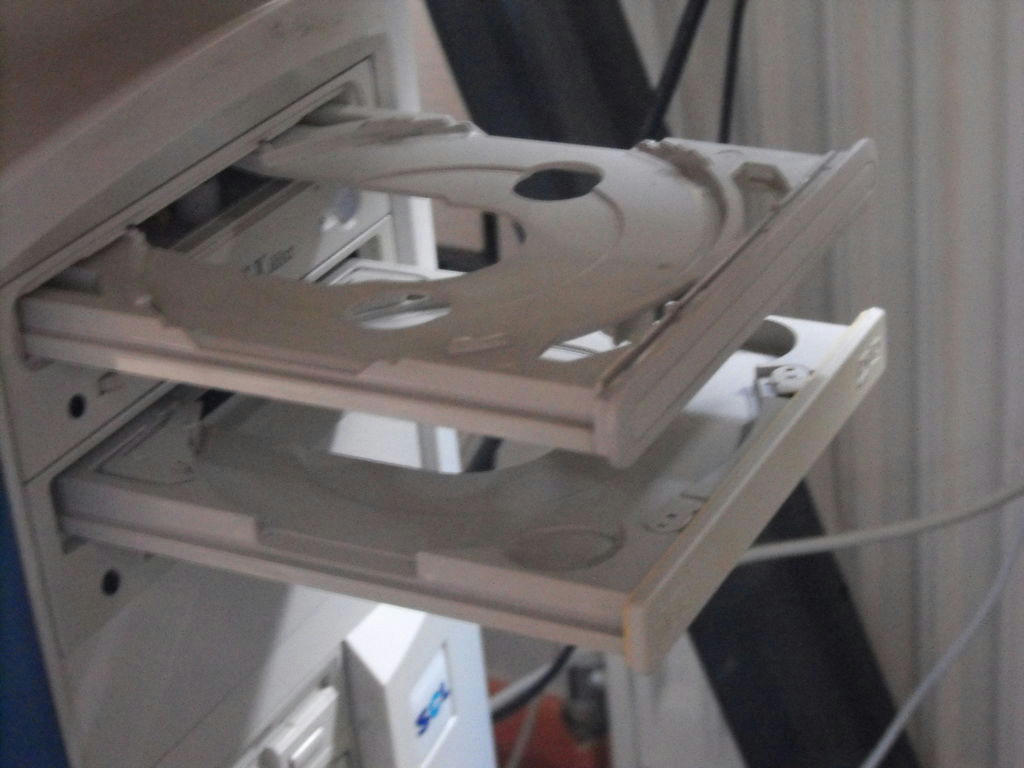
Today I am going to show you a great notepad prank to open and close the PC's optical drive continuously. It is just a few links of VBScript coding that does the trick. Just paste the code given below into notepad and save it a .vbs file.

When you open the VBS file, your optical drive would start to come out and go back in again. If you want to stop it, fireup the task manager (Ctrl+Shift+Esc) and kill the process named wscript.exe.

So that's it! Just give the VBS file to your friend and annoy them. You can also include a script to make it start up at windows login to make it more effective. Remember to like and share the post!

Suni

C++ Multiplication Table program

0 comments

Image

Here is somewhat a useful program written in C++ to print out the multiplication table for any given number. This is basic programming so it may be easy to understand the code. This program demonstrates the basic C++ functions, comment uses and loops. Also it uses a custom made function, the printHeader() function. I put a lot of comments in the code hoping it would make it easier for you to understand the code.

Suni

Find Original Installation Date of Windows

0 comments

Sometimes you may want to want to know when your Windows was installed. How many months, years have passed with your system being constantly clogged by useless bits of data. All of you the PC slows down over time so it seems like an easy solution to reinstall Windows from time to time (Which is not necessary unless you take good care of your system daily). So it might be useful to know the Windows installation date.

Suni

Colourise your Folders on Windows 7

0 comments

Image

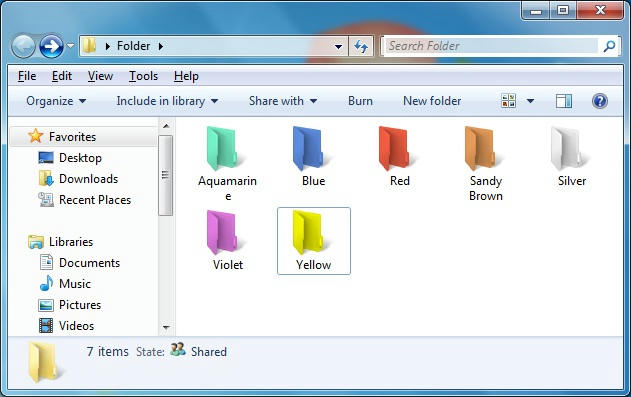
Today I am going to show you how to change the colour of windows 7 folders. Whether you are bored of the yellow coloured folder icons or just want a change or want to organize your folders this will come in handy. So lets get straight down to the trick.

Suni

Notepad Trick - Automatic Typing

2 comments

Image

Today I am going to show you a very easy notepad trick to scare your friends. The computer types automatically! This is quite an old trick using VBScript and I have seen lots of variations in the script. But here I will present you a very short script written by me. This script is unique as it is easy to modify the text to type and is really short and you can adjust the speed of the typing.

Suni

Create a Large File Quickly Using Batch File

0 comments

Image

After reading the heading of this post you may have thought about why we need to create a large file quickly. There are some reasons! For example when you want to test the data transfer speed or want to check the speed of a program with a large file, you may need a file of a specific size quickly.

Here is an easy batch file to easily let you create a file of size you want quickly! This batch file doesn't allow to create very big files like 100GB. Lets get to the batch file right away!

Here is the source code for the batch file. Copy the code, paste into notepad and save with a .bat extension and you are done!

After that the first thing I have to remind you is that you need to run the batch file as administrator for it to work. So always right-click the batch file and select Run as administrator to use it. It will remind you if you forget!

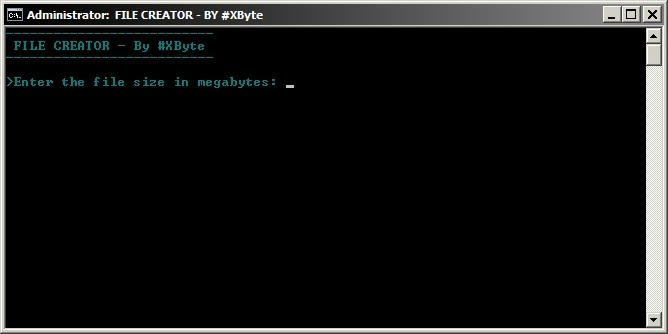
When you open the batch file with administrator privileges it will prompt you to enter the file size in Megabytes. Enter the size you want to press Enter. And...Boom...there is a file of the size specified on your desktop!

I hope you liked this post. If you did then remember to press the like button and share it with your friends. Also if you have any comments or complaints don't hesitate to leave them in the comments.

Suni

How to Make an Annoying Virus - Continous Typing

2 comments

Image

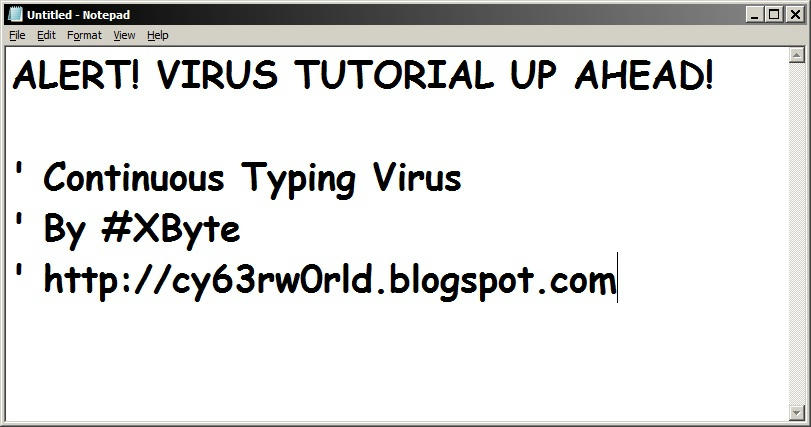
I am sure almost all of you wanted to annoy your friend, brother or sister while he/she is at the computer. You don't need any special skills to advanced degrees for this. Just simple knowledge of VBScript or Batch script and you can do countless tricks!

Suni

Batch File Trick - Website Pinger

0 comments

Image

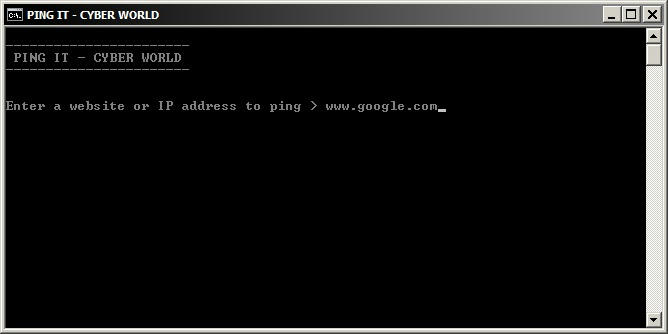
When you want to find the IP address of a website you need to ping it using CMD. But you can always make the things easier! Using a simple batch file you just have to enter the website you want and it pings it. It also will tell if the pinging was successful or not.

Suni

Easily Access Web Applications From Desktop

0 comments

Image

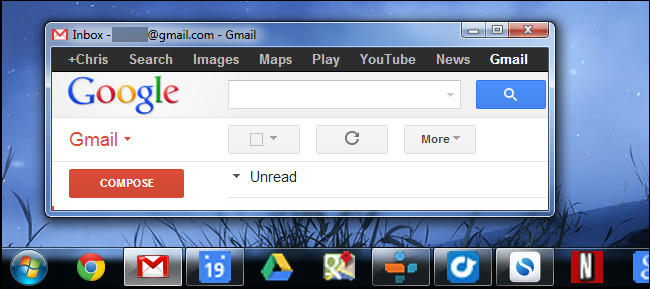
Web apps have been replacing desktop apps for everything from email and document-editing to playing videos and music. You don't have to keep your web apps confined to a browser window – they can become first-class citizens on your desktop.

Suni

Use your Web Browser as a Text Editor

0 comments


Image

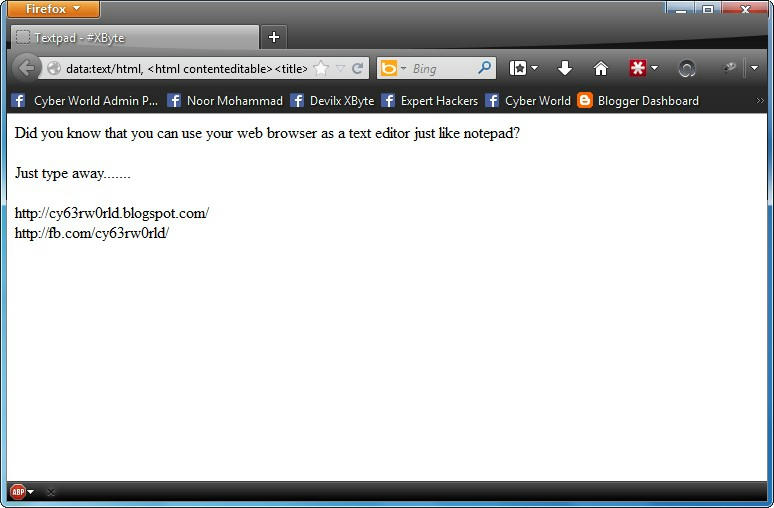
Now you can quickly make notes and save it when you are on internet using your Browser. No need for wasting time opening notepad! Here is a trick you can use to use your Firefox or Google Chrome or any other web browser just like a normal browser.

Suni

Test your AntiVirus Software

0 comments


Image

There are numerous antivirus software out there, free or for sale. This post is dedicated to all the users who want to check the ability of their respective antivirus system. Just put your antivirus software through this test. If your antivirus passed the test, then your antivirus is working properly and you don't need to worry much. So lets go straight to the procedure.

Suni

Registry Hack - Open with Notepad

0 comments

Image

The default method of opening unknown files forces you to go through a list of known applications and is generally a pain to deal with. That is why I like to have a context menu option for "Open with Notepad" so that I can quickly open up files without having to go through a lot of trouble. Just follow the steps below

Suni

Make a folder bomb

3 comments

Image

Here is a great and annoying batch file trick with only three lines of coding. When the batch file is opened the batch file enters an infinite loop creating new folders at a very fast rate. It can create more than 1000 folders in just 7 seconds! Cleaning the newly made folders will be real difficult if the batch file is opened in a directory with a lot of important files and folders.

Suni

Install Ubuntu theme in Windows 7

2 comments

Image


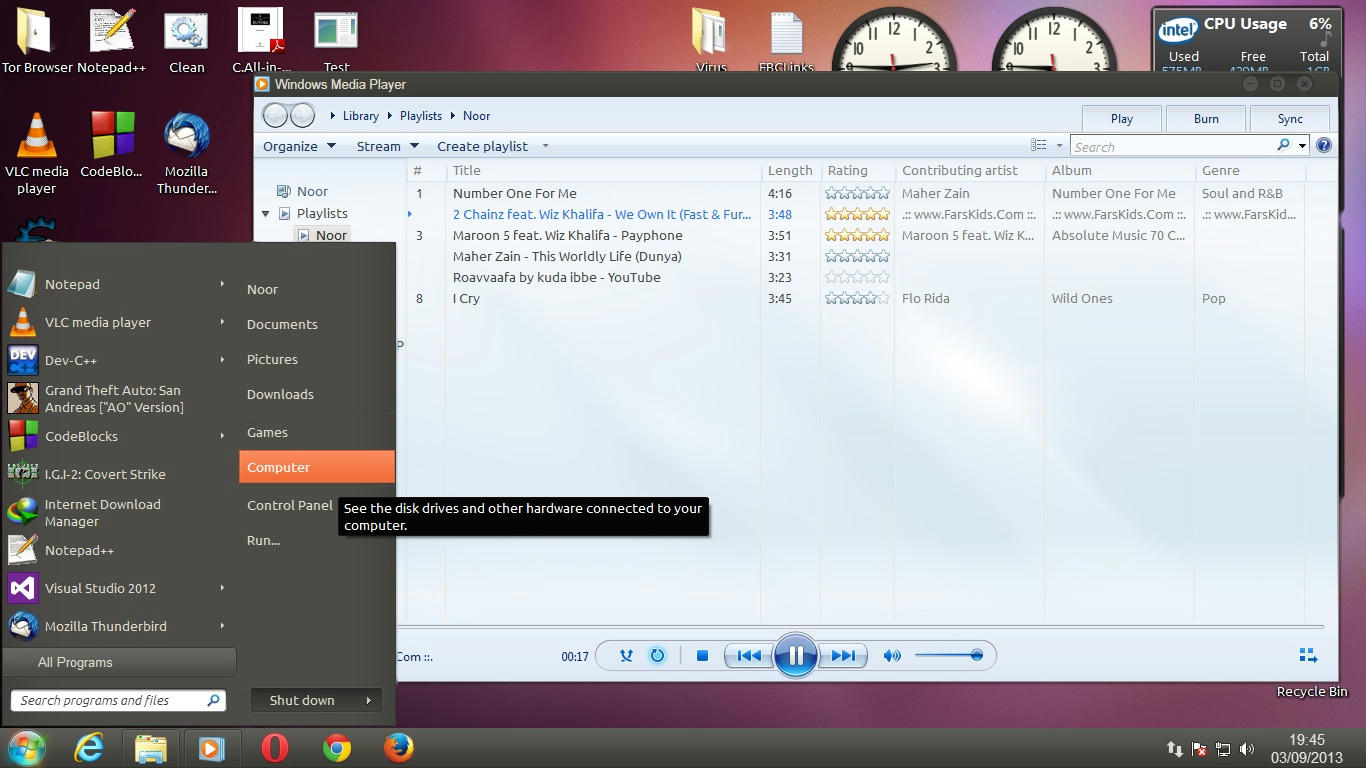
One of the most popular OS in Linux distributions is Ubuntu. If you ever liked the Ubuntu theme and wanted it on your Windows 7 then I have happy news for you. It is a little complicated but I have a step by step tutorial which I hope will make the task easier for you.

Patching your system files

Windows checks if themes are signed by Microsoft before loading them. If they aren't, Windows won't load them at all. To use them, you will have to modify Windows system files — uxtheme.dll in particular — and disable the check. In the past, this required booting into Safe Mode and manually replacing system files. Today, there are easier ways to do this.

UxStyle is an ideal solution. This application runs entirely in memory, disabling the check without modifying any system files. It's the easiest, safest way to enable third-party themes. However, its support for Windows 8 is experimental, so only Windows 7 users should use UxStyle. To use UxStyle, download it, extract the .zip file, and run the x64 installer if you're using a 64-bit version of Windows or the x86 one if you're using a 32-bit version of Windows. After installation, a new process named "UnsignedThemesSvc.exe" will run in the background. Reboot your computer and you'll be able to install unsigned themes.

Finding themes

You will find custom visual styles for Windows on a variety of websites. One of the best places to hunt for visual styles is on Deviant Art. Check the appropriate category page for your version of Windows:

The themes are usually distributed in compressed format like .rar or .zip. Also almost all themes come with full instructions for installing the theme.

Installing Maverick (Ubuntu Theme)

As an example here I am going to use a theme Maverick for Win7 which attempts to port Ubuntu's default theme into Windows 7. I also personally like Ubuntu's theme. Below is a step-by-step tutorial to install the theme with some screenshots.

Step 1: Download and install UxStyle.


UxStyle


Step 2: Download the theme in .zip format from here.

Step 3: After downloading extract the archive using WinZip or any other compression tool.

Step 4: Copy every file and folder in Themes folder in the extracted folder to C:\Windows\Resources\Themes\. You might need administrator privileges to do this.


Themes


Step 5: Copy every file in Fonts folder to C:\Windows\Fonts\. This also might require you to have administrator privileges.


Fonts


Step 6: Open the Wallpaper folder in the extracted folder and set the picture as destop background. This is not necessary but is is the default wallpaper of Ubuntu.


Themes


Step 7: Goto Control Panel. A new theme will be there. Click the new theme to apply the Ubuntu theme to your Windows 7!


Themes


Here are few screenshots for you:


Image


Image


Image


If you are having any problems please mention it in the comments or use the contact form with the full details of the problem. Remember to share and like our Facebook Page if you liked the post.

Suni

Get full access to system32 files

0 comments

Image

Sometimes when you want or need to delete or replace system32 files the computer does not allow it. So here is a simple trick to get full permission and ownership of system32 files using CMD.

Step 1: Open a CMD window with administrator privileges. To do this goto start menu and type "cmd" into the search box without the quotation marks and press Ctrl+Shift+Enter.

Suni

Command prompt shortcuts with function keys

0 comments

Image

Become a Command Prompt geek with Function keys. Shortcuts with the Function keys will improve your speed and swiftness with Command Prompt. Here are the shortcuts:

Suni

Clean Windows temp files and Temporary Internet files

2 comments

Image

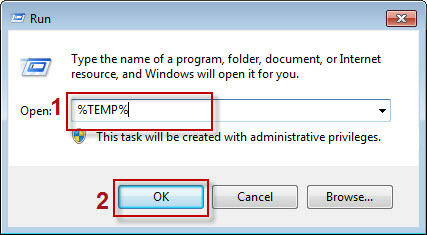
Windows stores files from programs and Browsing history. Some of these files can make your page load time faster. But it can give away your browsing history as well as slow down the system. So cleaning the temporary files can increase your system performance and speed. There are some free tools out there to do the task for you. But today I am going to show you a notepad trick to clean the windows temporary files effectively.

Suni

Open a CMD window in any folder

0 comments

Image

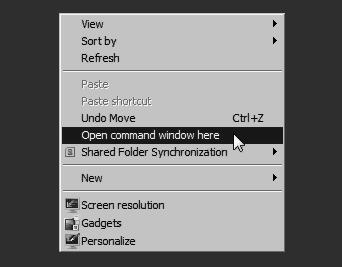
If you are a frequent user of command prompt you will certainly find it annoying to change the directory every time. Here is a neat trick to open a command prompt window directly into a specific folder or drive. This can save you from typing the CD command every time you open the command prompt window.

Suni
Tips Tricks And Tutorials
  • Calculator

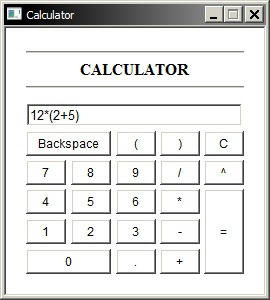
    VBScript Calculator

    This is a very simple calculator made with HTML and coded with VBScript.

  • Hack windows password

    Hack windows 7/XP password

    Learn the easiest and most reliable method to hack logon password for any account on windows 7/XP. Even administrator accounts are not excluded!

  • Windows gadget

    Make windows gadgets

    Learn how to make gadgets for windows! It may be easier than you imagine.

  • Facebook

    Visit our facebook page

    Keep tuned to the posts via facebook. We continually update our facebook page.

  • Contactform

    Contact

    If you have any complaints, questions or suggestions, feel free to contact me via the easy contact form.